News & Insights
How to Pair Stretched Bar Displays with a Mini PC Running Windows: Interfaces, Resolution, and Power Planning Explained
When stretched bar LCD displays come with integrated smart compute engines, they predominantly run Android—providing ample performance for image loops, video commercials, and cloud
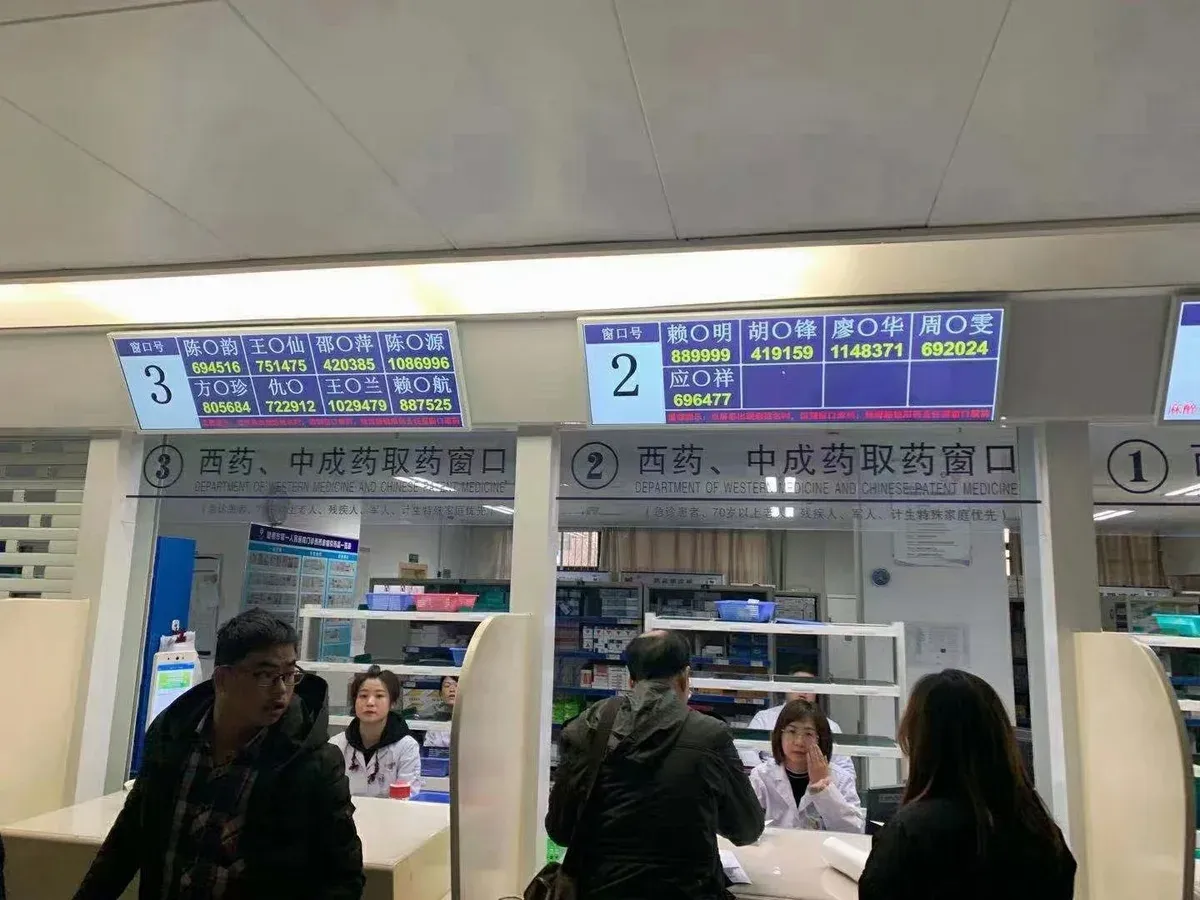
When stretched bar LCD displays come with integrated smart compute engines, they predominantly run Android—providing ample performance for image loops, video commercials, and cloud CMS updates. However, specialized commercial projects frequently mandate Windows: existing enterprise signage software is Windows-only, real-time BI operational dashboards must run natively, industry-specific Windows desktop utilities are required, or hardware must integrate directly into corporate Windows domains.
The pragmatic architectural solution is pairing the stretched bar display with a compact Mini PC running Windows, delegating computation to the Mini PC while the stretched bar operates as a dedicated commercial monitor. While conceptually straightforward, the unique geometry of stretched displays introduces specific integration details that must be planned carefully.
Distinguishing Three Architectural Integration Approaches
1. External Standalone Mini PC: The most flexible, modular architecture. A compact Mini PC mounts beneath shelving, inside cabinetry, or in a nearby IT closet, linking to the stretched display via video cabling while the display acts purely as a passive monitor. Upgrading compute power later requires swapping only the Mini PC without touching the mounted display.
2. Integrated Built-In Compute Module (All-in-One Windows): Integrating a compact embedded Windows PC directly inside the display housing. Delivers ultra-clean aesthetics with zero external video cabling, but requires thicker chassis profiles, robust internal cooling, and higher custom NRE costs.
3. Dual-OS Hybrid Architecture (Android + Windows): Incorporating both Android and modular Windows OPS slots inside one unit for on-demand switching. Offers maximum versatility, but introduces higher structural complexity and cost, and is limited to select chassis models.
Among these, pairing an external Mini PC carries the lowest implementation barrier and greatest upgrade flexibility, making it ideal for existing stretched monitors or agile Windows deployments. Below is a detailed implementation guide.
Video & Touch Connectivity: Verify Display Interfaces First
Stretched displays commonly feature HDMI inputs (with select models offering DisplayPort or VGA). Commercial Mini PCs typically output HDMI or DisplayPort. Where interfaces match, a single shielded video cable connects them cleanly; where ports differ, verify active unidirectional adapter dongles (e.g., DP-to-HDMI) in advance rather than scrambling on-site.
Pay close attention to cable length and shielding: shelf conduits are tight, requiring sharp cable bends. Low-grade cables suffer loose contacts or EMI crosstalk, triggering screen flicker or static snow. Specify short, high-grade shielded cables routed clear of merchandise crushing.
Important Note on Touch Displays: If your stretched display includes capacitive or infrared touch, video cables carry visual data only. A separate USB upstream cable must connect the display's touch port to the Mini PC's USB port to enable Windows touch input.
The Biggest Pitfall: Non-Standard Stretched Resolutions in Windows
This is the single most common technical hurdle when pairing stretched bar screens with Windows Mini PCs.
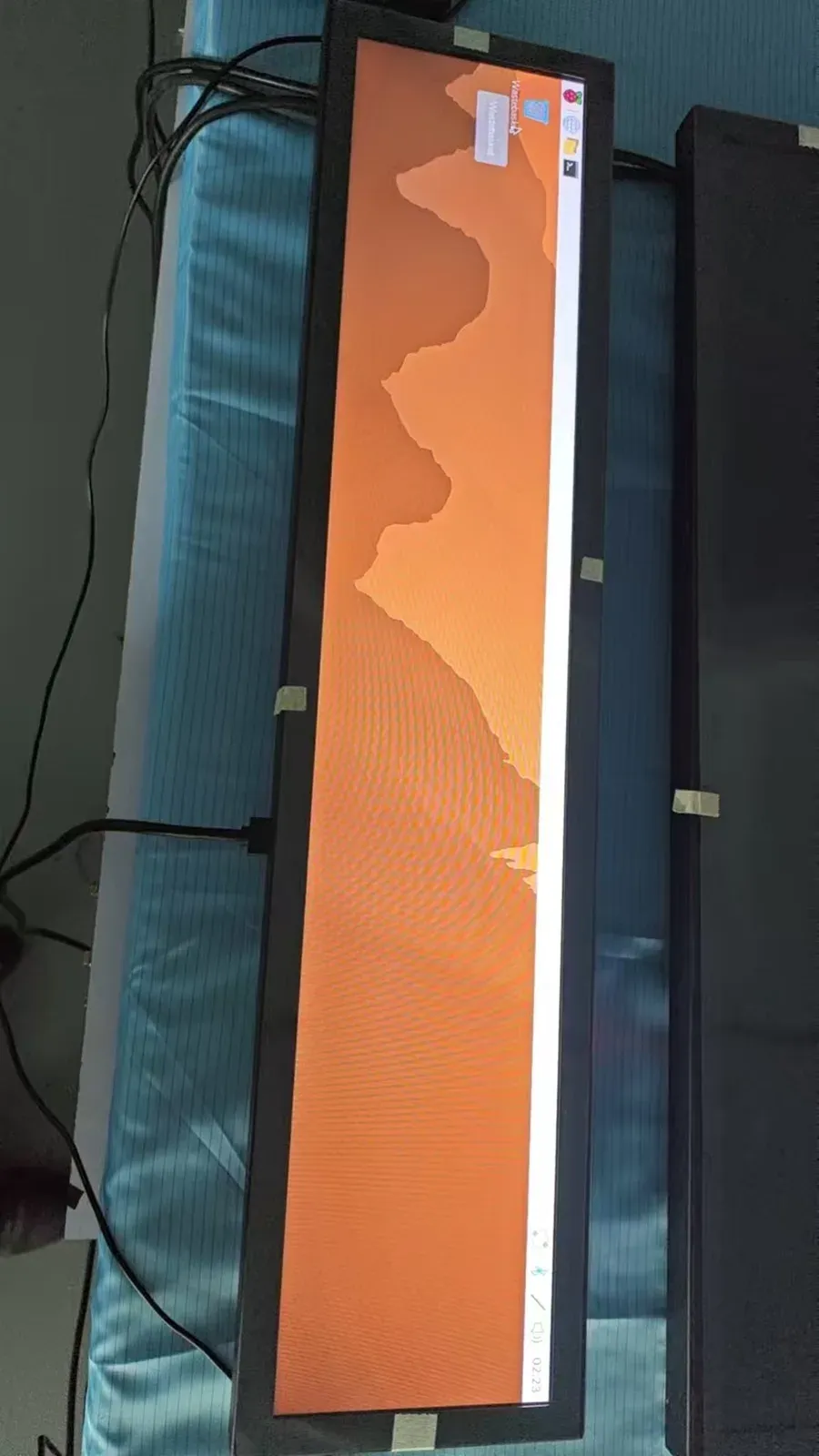
Windows natively recognizes standard 16:9 monitor resolutions effortlessly. Stretched displays utilize extreme aspect ratios combining vast horizontal widths with narrow vertical heights (e.g., 1920×360, 1920×540, 3840×1080). If the Mini PC graphics driver fails to read the panel's EDID timing properly, visuals suffer severe horizontal stretching, center-only display with wide black sidebars, blurry typography, or clipped Windows UI.
Technical Resolution Workflow:
Normally, the display communicates its native EDID resolution to the Mini PC upon handshake, prompting Windows to select the optimal mode. If Windows defaults to standard 16:9, open Windows Display Settings and manually select the panel's native resolution. Where native stretched timings are absent from the standard Windows list, open the Intel/AMD/NVIDIA Graphics Control Panel to manually create a Custom Resolution matching exact native pixel dimensions and refresh rate (60Hz)—contingent upon GPU driver support.
When specifying Mini PCs, verify with your supplier in advance that the GPU chipset and BIOS support non-standard stretched EDID timings, validating on a physical test bench before volume purchasing.
Simultaneously, calibrate Windows Display Scaling: because vertical pixel height is narrow (e.g., 360px or 540px), excessive scaling (150%+) makes application menus overflow off-screen, while 100% scaling may render tiny text. Calibrate scaling to native height on the live screen, designing custom app UIs specifically for that viewport.
Display Orientation and Windows Software Design
For vertically mounted portrait stretched displays, configure Display Orientation (Portrait / Portrait Flipped) in Windows Display Settings. Crucially, if utilizing a touchscreen, run the Windows Tablet PC Calibration utility immediately after rotating the screen so touch coordinates map accurately to rotated pixels.
Software UI Alignment: Standard Windows desktop applications are designed for 16:9 monitors and frequently clip or overlap when squeezed into 1920×360 bars. Ensure deployed enterprise applications support responsive layouts, custom viewport sizing, or kiosk-mode web frameworks.
Power Supply Planning: Do Not Neglect Power Sequencing
Both the Mini PC and the stretched bar display require electrical power. Plan power topology cleanly: will each unit utilize independent AC/DC power adapters, or share a regulated DC power bus? Where are shelf power drops located? Can power cycling be synchronized?
Best Practice: Connect both the Mini PC and the stretched display to the same switched, surge-protected electrical circuit, and configure Automated Power-On After Power Loss: set 'Restore AC Power Loss -> Power On' inside the Mini PC BIOS, and enable 'Auto Power-On' on the display firmware. Following facility circuit breaker mornings or grid brownouts, both devices boot autonomously without manual button pushing.
Thermal Management and Mounting Placement
Retail shelving cavities are cramped; stuffing an active Mini PC into an unventilated shelf pocket behind a stretched display traps severe heat, causing processor thermal throttling, lag, or sudden system lockups.
Mount the Mini PC in a ventilated location, never sealing it inside airtight millwork or pressing it directly against the display's hot rear backlight plate. If shelving spaces are ultra-tight, mount the Mini PC inside a ventilated cabinet bay below and run shielded long-reach video cables (e.g., fiber HDMI) to the display. Where integrated compact installation is mandatory, consult your supplier regarding built-in thermal engineering.
Configuring Unattended 24/7 Kiosk Operation
Retail shelf displays operate unattended; Windows must run autonomously without human babysitting: configure automatic Windows user login and launch digital signage software automatically via Windows Startup folders or Task Scheduler; disable intrusive Windows Update popup notifications and unexpected mid-day reboots via Group Policy; configure watchdog monitoring scripts to relaunch crashed playback apps automatically; and establish secure remote desktop management (e.g., VPN + VNC/RDP) for IT troubleshooting.
Select appropriate Windows editions: standard Windows Home/Pro editions enforce aggressive consumer updates that interrupt business displays; commercial deployments strongly favor Windows IoT Enterprise LTSC editions engineered for long-term unattended stability, ensuring proper software licensing compliance.
When Windows Is Unnecessary
If your deployment merely loops high-definition images, promotional videos, and simple cloud CMS playlists, Android-based smart stretched displays remain far more economical, simpler to maintain, consume less power, and generate less heat. Reserve external Windows Mini PCs exclusively for deployments requiring dedicated Windows applications or corporate Windows network integration.
Pre-Deployment Implementation Checklist
Confirm display and Mini PC video interface alignment (adapters needed?); verify exact native stretched resolution and Mini PC GPU custom timing support; confirm USB touch cabling if touch-enabled; configure coordinated AC power and BIOS 'Auto Power-On'; confirm Mini PC mounting location and convective ventilation; validate Windows application UI layout on the stretched viewport; verify Windows LTSC licensing and update policies; and establish clear support boundaries between display and PC vendors. Run a complete hardware-software test bench for one to two weeks prior to volume deployment.
Frequently Asked Questions (FAQ)
Why does my stretched display show distorted or stretched Windows graphics?
Access Windows Display Settings and select the panel's exact native pixel resolution, adjusting scaling accordingly. If absent, configure a Custom Resolution inside the GPU control panel or verify GPU driver EDID support.
Is Windows mandatory for stretched bar signage?
No. For standard image, video, and cloud CMS playback, integrated Android models are simpler and more cost-effective; Windows is required only for specialized Windows desktop software.
Can a Mini PC be embedded inside the stretched display chassis?
Depending on chassis depth and thermal engineering, select projects utilize integrated custom Windows compute modules; consult your manufacturer during design.
How is interactive touch connected to a Windows Mini PC?
Connect a separate USB upstream cable from the display's touch output port to a Mini PC USB port, executing Windows touch calibration if mounted vertically.
ZXTLCD specializes in the design and manufacturing of shelf-edge stretched bar displays and specialized custom-format LCD screens, spanning stretched bars, square displays, and round screens, supporting comprehensive OEM/ODM custom engineering across compute architectures and chassis designs. If your project requires running Windows on stretched displays, share your application scenario, software specs, and unit counts with our team for tailored consultation. Official website: www.shelflcd.com
Looking for customized commercial Stretched Bar Display + Mini PC Integration solutions, Stretched Bar Display Mini PC, Windows Bar LCD Screen, Bar Display PC Pairing, or tailored ultra-wide display hardware? Feel free to contact the ZXTLCD engineering team for engineering specifications, CAD drawings, and factory-direct volume quotes.
Featured Commercial Hardware: Explore our high-performance PC Secondary Monitor - 34 Inch Ultrawide Bar Screen for Custom Desk Setup and Wall Mount 48 Inch Stretched Bar LCD Monitor All in One Tablet PC for Indoor Application engineered specifically for demanding modern retail shelf and digital signage spaces.