News & Insights
Six Common Stretched Bar Display Faults: Symptoms, Root Causes, and a Step-by-Step Troubleshooting Sequence
Stretched bar LCD displays mounted along retail shelf edges and service counter headers operate continuously for long hours amidst dense, slender cabling, making occasional minor g
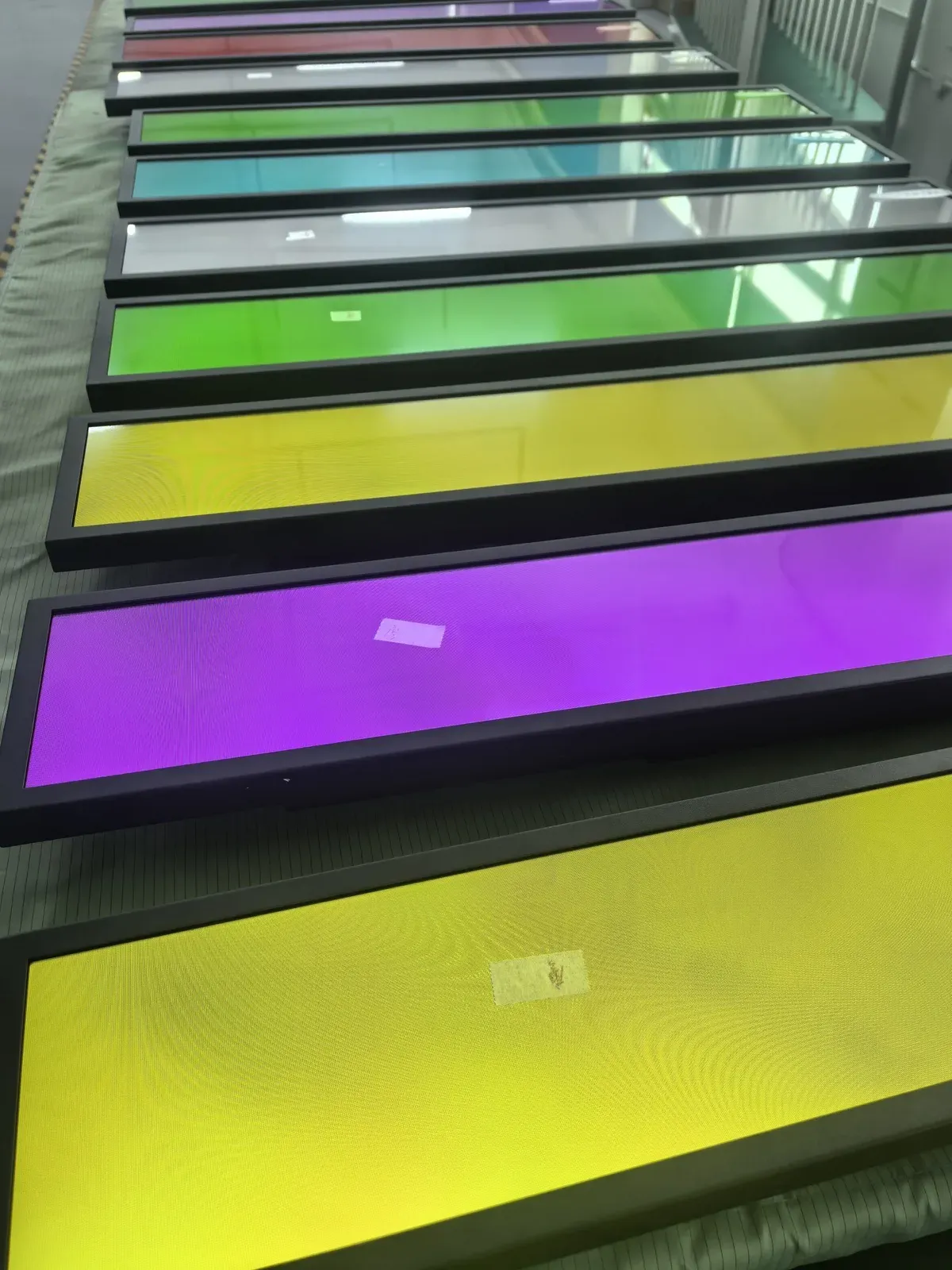
Stretched bar LCD displays mounted along retail shelf edges and service counter headers operate continuously for long hours amidst dense, slender cabling, making occasional minor glitches normal. However, unmounting and shipping an entire display back to the factory at the first sign of trouble wastes immense time—especially when the root cause frequently lies outside the panel itself.
Below are the six most frequent field faults encountered on site, structured logically by symptom, root cause, and systematic troubleshooting starting from the simplest external checks.
Three Golden Troubleshooting Rules
1. Always Disconnect Power Before Handling Cables: Power off the unit and unplug the AC adapter before reseating connectors; avoid live-plugging.
2. Troubleshoot External-to-Internal, Simple-to-Complex: Verify power, external cabling, signal sources, and software settings before suspecting internal display hardware. This sequence resolves most issues while preventing accidental damage to healthy components.
3. Use Swap-Testing to Isolate Faults: Swap in a spare power brick, alternate video cable, or different signal source; whichever swap restores normal display pinpoints the defective link.
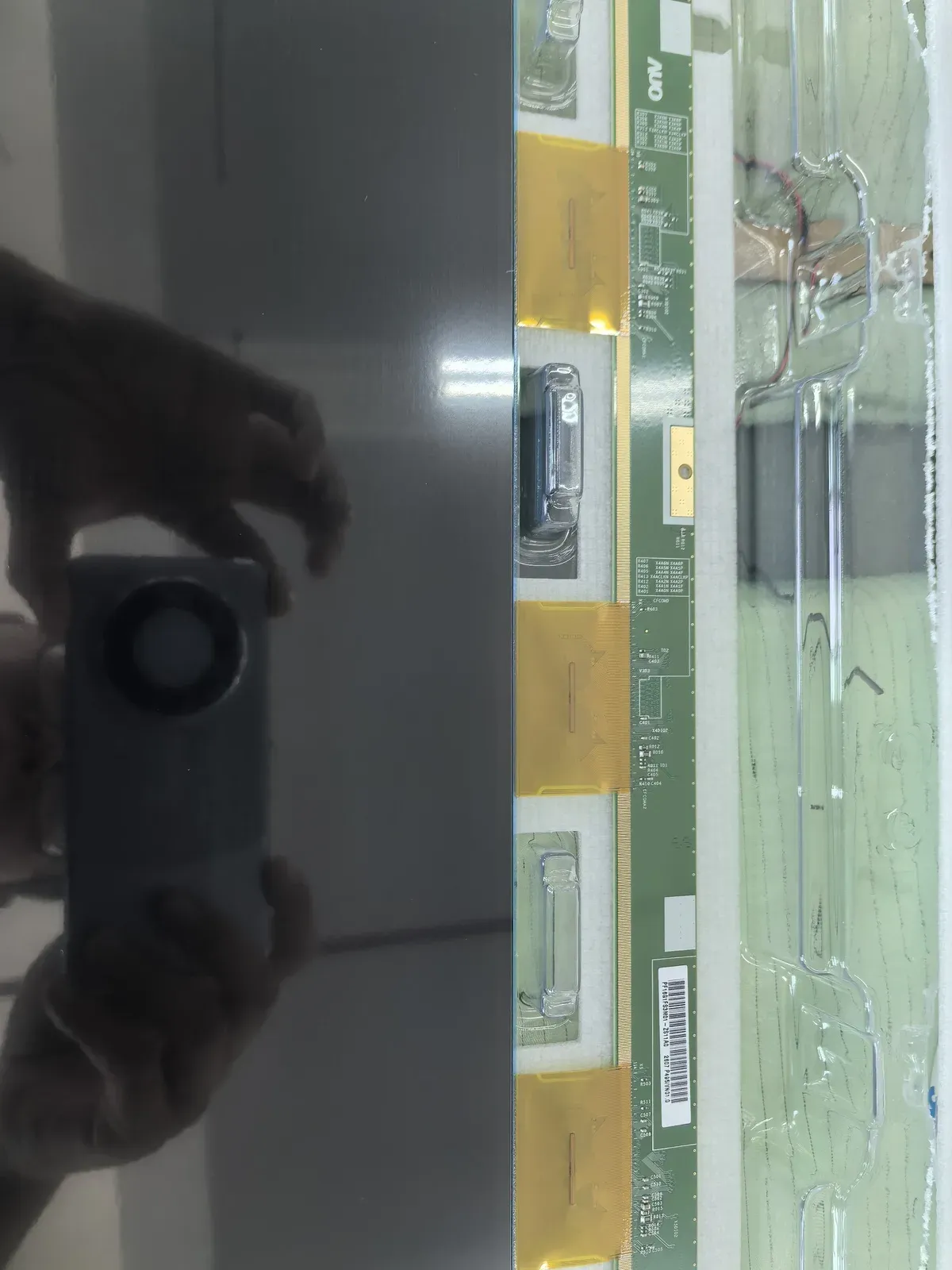
Fault 1: Complete Black Screen (No Display Output)
The most prevalent issue. First distinguish two distinct states: zero power response vs. backlight glowing with no video image.
If Zero Power Response, Inspect Electrical Supply: Verify that the AC plug is firmly seated, confirm the wall outlet is energized, check whether the power adapter indicator LED illuminates, and test an alternate outlet. Shelf-edge power cords are thin and frequently pinched by merchandise, causing loose DC barrel jacks.
If Backlight Glows Without Image, Suspect Signal Transmission: Verify HDMI/signal cable seating, confirm the media player is actively outputting video, and check whether the unit is stuck in standby mode. For smart Android models, perform a hard reboot and observe whether the boot logo renders.
If swapping power adapters, video leads, and signal sources yields zero response—including no boot logo—hardware failure is indicated; contact manufacturer technical support.
[Image Suggestion: Black screen troubleshooting flowchart branching from 'Power indicator LED status']
Fault 2: Screen Glitching, Static Snow, or Visual Artifacts
Symptoms include scrambled color blocks, analog-like static snow, or horizontal/vertical interference banding. On stretched displays, nine times out of ten these symptoms originate in signal cabling rather than panel glass.
Power off and firmly reseat both ends of the video cable, inspecting connector pins for bending or green oxidation. Overly long, low-shielding cables or video leads tightly bundled with heavy AC power lines induce severe EMI crosstalk. Swapping in a high-grade, short shielded cable is the fastest verification.
Compare built-in test screens or local playback against external inputs: if local media plays cleanly while external video glitches, the fault lies in external cabling or source boxes; if built-in test screens also glitch, suspect internal ribbon leads or T-Con drivers.
Review our dedicated step-by-step snow and blurring troubleshooting guide for expanded diagnostic instructions.
[Image Suggestion: Side-by-side comparison of normal image vs. static snow/glitching labeled 'Check Cabling First']
Fault 3: Image Distortion, Stretching, or Black Sidebars
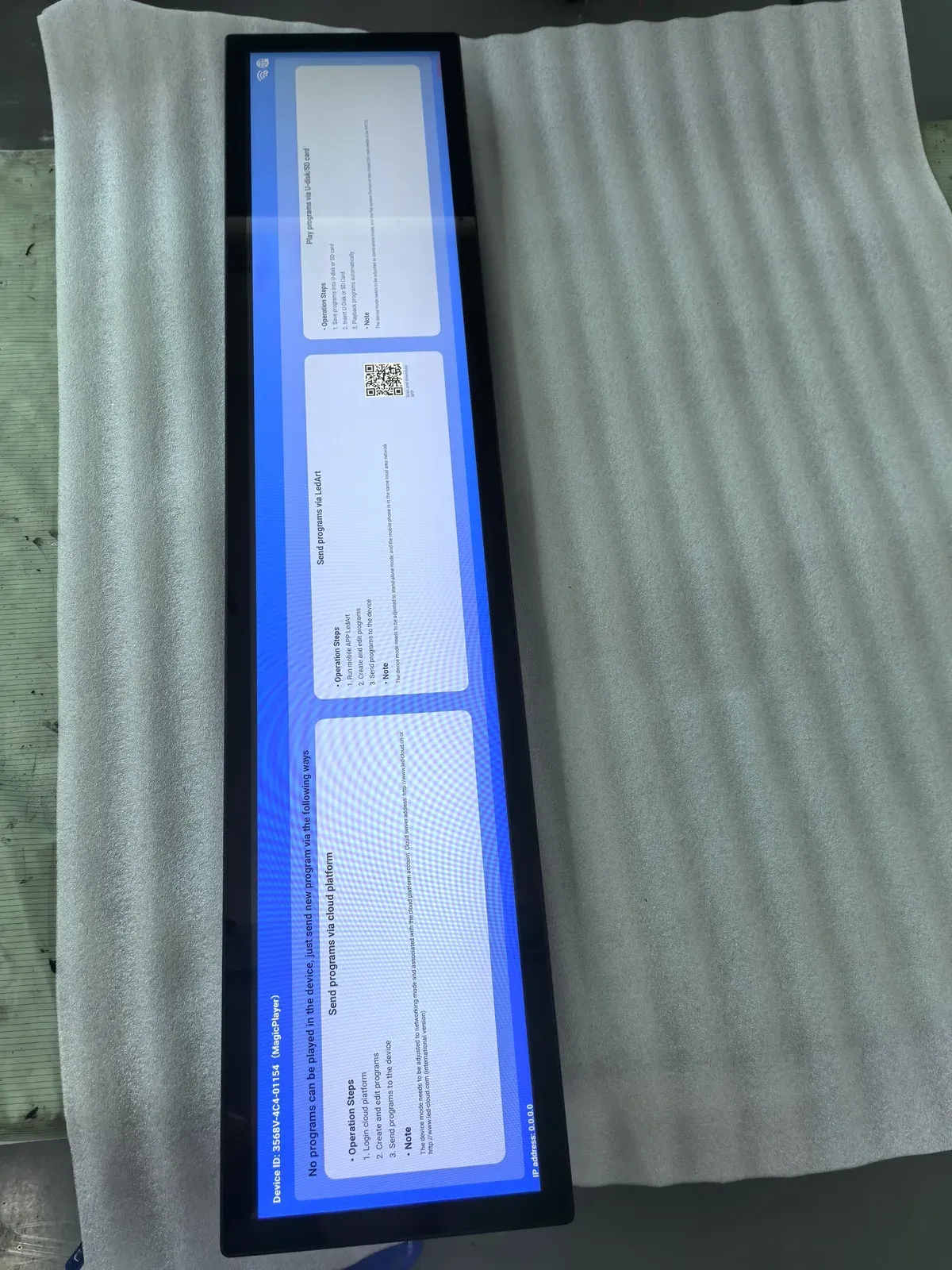
Circles render as flattened ovals, typography appears squished or stretched, or media occupies only the center strip flanked by black bars. This is not a hardware defect—it is an aspect ratio mismatch.
Stretched displays use non-standard ultra-wide proportions; feeding standard 16:9 video forces hardware scaling or black letterboxing. Solutions: author creative media strictly to the panel's native pixel resolution; configure player scaling settings appropriately; and set the source PC/player output timing to native panel resolution.
If properly formatted media still distorts, inspect source graphics card output settings against model-supported resolution timings.
[Image Suggestion: Same visual asset rendered in mismatched aspect ratio vs. native aspect ratio]
Fault 4: Screen Flickering or Intermittent Blackouts
Luminance flickers erratically, or the display drops black momentarily before recovering. Intermittent faults are frustrating because units often behave normally during brief inspections.
Three Primary Culprits: Loose Contacts (shelving vibrations shake video connectors loose intermittently); Unstable Power (deteriorating power adapters, loose outlets, or voltage sags on shared circuits); and Overheating (displays enclosed inside unventilated cabinetry trigger thermal shutdowns, recovering once cooled).
Troubleshooting: Gently wiggle cables while observing the screen for flicker; connect to a dedicated AC outlet; and touch the rear chassis to check for excessive heat, verifying unobstructed airflow vents. Document timestamps, ambient temperatures, and frequencies before contacting support if issues cannot be reproduced on command.
[Image Suggestion: Schematic highlighting loose cable terminals and thermal vent obstruction]
Fault 5: Permanent Bright Lines, Dark Lines, Color Patches, or Light Bleed
Stationary vertical or horizontal colored lines, frozen blocks, or bright edge light bleed appear on screen—remaining fixed in place regardless of cable or signal source swaps.
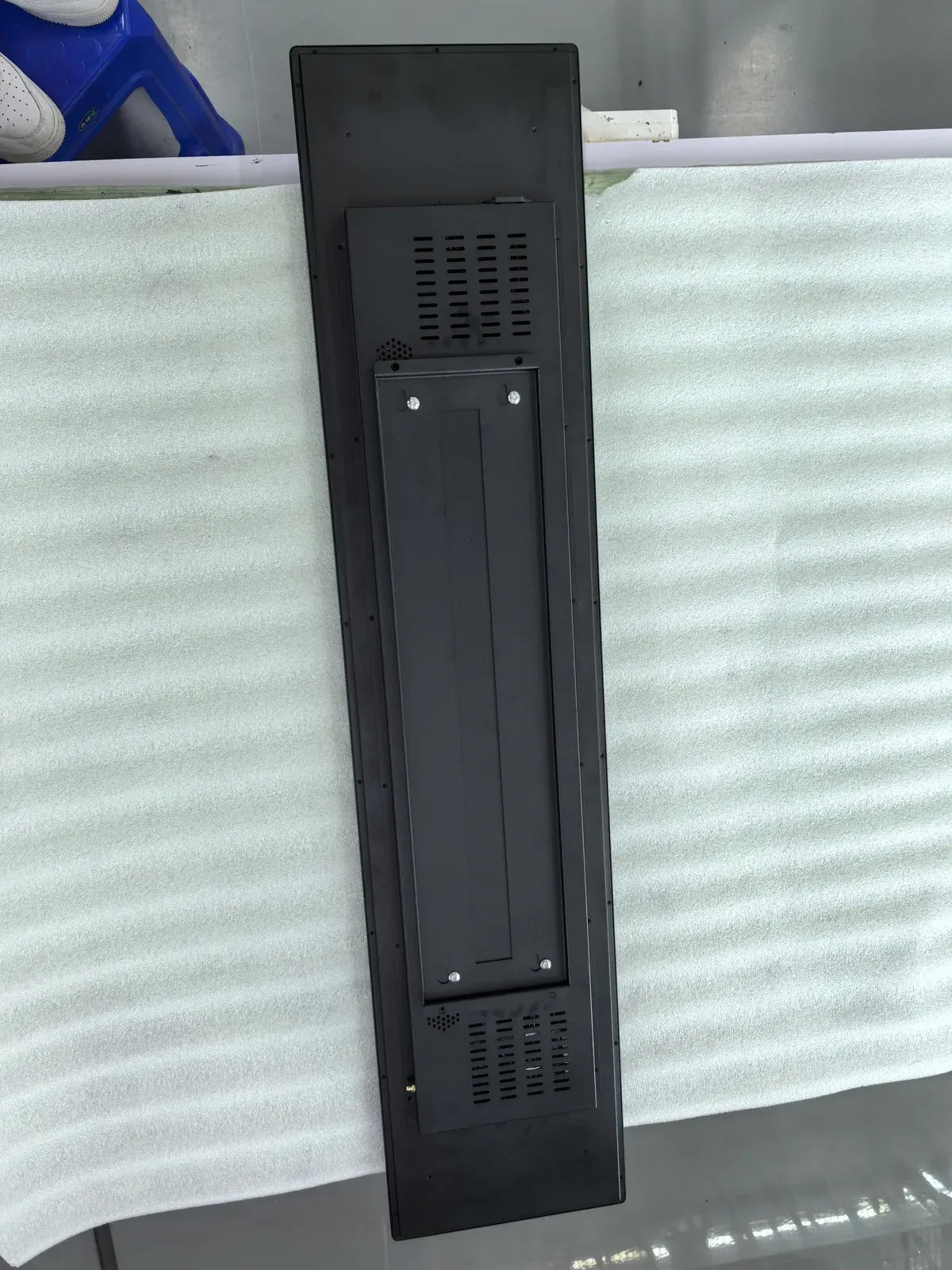
These symptoms typically indicate physical LCD panel or internal COF/FFC ribbon damage caused by mechanical impact, chassis pinching, or driver IC defects. Exercise strict restraint: never press hard on the glass, never tap the bezel, and never pry open the housing.
Diagnostic Steps: Wipe the surface with a soft cloth to rule out external smudges; run a solid-color test slide to confirm lines persist independent of content; photograph/video the defect with timestamps and contact manufacturer support. These defects require clean-room component servicing.
[Image Suggestion: Solid-color test screen illustrating fixed vertical/horizontal line artifacts labeled 'Stationary across all inputs']
Fault 6: Stale Content, Playback Stutter, or Offline CMS Status
Increasingly common on networked cloud displays: hardware operates normally, yet new campaigns pushed from headquarters fail to update, or video stutters mid-loop.
Troubleshooting: Inspect network connectivity (Wi-Fi signal strength, Ethernet link LEDs, router uptime); check cloud CMS dashboards (online heartbeat, playlist publishing status, schedule conflicts). Rebooting the display controller resolves most temporary software stalls. Overly large, high-bitrate 4K video files or unsupported codecs cause stutter; test with optimized standard media files.
On Android models, strictly prohibit installing unvetted third-party apps that consume system RAM and trigger instability.
When to Halt DIY Troubleshooting and Contact After-Sales Support
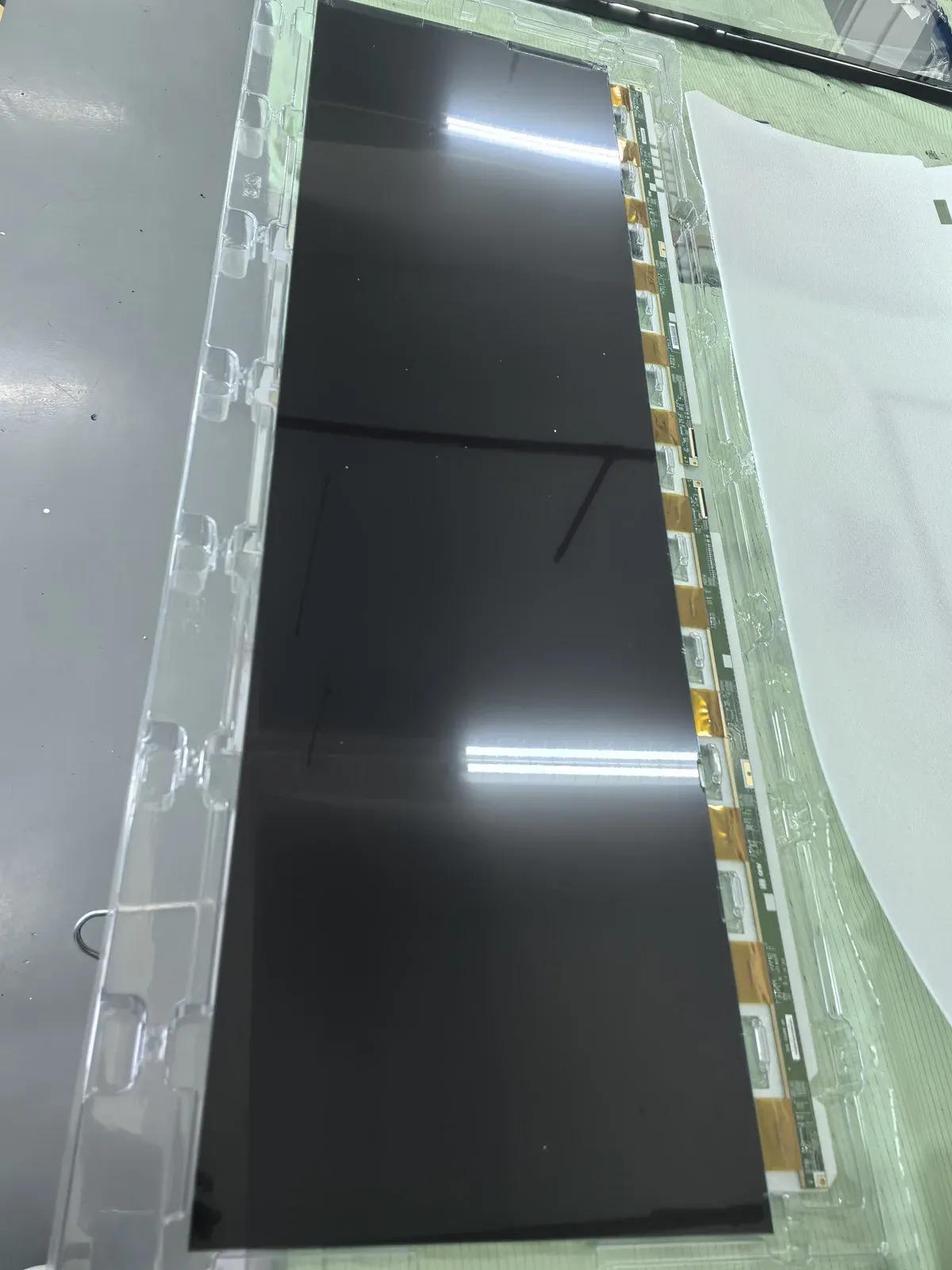
Immediately escalate to certified technicians under these conditions: burning odors, smoke, or abnormal chassis heat; visible glass cracks, collision dents, or liquid ingress; stationary bright lines, color patches, or edge light bleed; zero response after swapping power, cables, and sources; or faults requiring chassis disassembly.
When contacting support, provide complete context in one message: model number, purchase date, installation site, exact symptom chronology, swap-tests performed, and clear photos/videos. Detailed diagnostics enable rapid technical resolution.
Preventive Habits That Eliminate Most Faults
Keep cabling neat and clear of merchandise crushing; power displays via stable dedicated outlets; preserve convective cooling clearances around vents; clean surfaces gently with dry microfiber cloths without spraying liquids; format media strictly to native pixel resolution; and conduct periodic fastener checks.
Our commercial stretched displays are designed for indoor commercial environments; avoid rain, unshaded solar baking, and persistent high humidity.
Frequently Asked Questions (FAQ)
Does a black screen definitively mean the LCD panel is ruined? No. Most black screens stem from loose power bricks, disconnected video cables, or signal source glitches; troubleshoot methodically in sequence first.
Does a distorted or stretched image require hardware replacement? Generally no. Image stretching stems from aspect ratio mismatches; re-authoring creative media to native panel pixel resolution resolves it.
Can intermittent screen flickering be fixed on-site? Verify cabling tightness, dedicated electrical outlets, and cooling vent airflow first. Escalate persistent intermittent faults to technical support.
Can permanent vertical lines or color blocks be repaired by users? It is not advised. Fixed panel artifacts involve delicate internal ribbon bonding or glass substrates requiring professional servicing.
ZXTLCD specializes in the design and manufacturing of shelf-edge stretched bar displays and specialized custom-format LCD screens, spanning stretched bars, square displays, and round screens, supporting comprehensive OEM/ODM engineering. If your stretched display encounters operational anomalies, share your model, environment, and symptoms with our team for prompt consultation. Official website: www.shelflcd.com
Looking for customized commercial Stretched Bar Display Troubleshooting solutions, Stretched Bar Display Faults, Bar LCD Troubleshooting Guide, Stretched Screen Black Screen Fix, or tailored ultra-wide display hardware? Feel free to contact the ZXTLCD engineering team for engineering specifications, CAD drawings, and factory-direct volume quotes.
Featured Commercial Hardware: Explore our high-performance 24 Inch Capacitive Touchscreen Bar Monitor, 10-Point PCAP Touch Panel and Industrial 28.6 Inch Bar Type Monitor Display with Aluminum Profile engineered specifically for demanding modern retail shelf and digital signage spaces.